
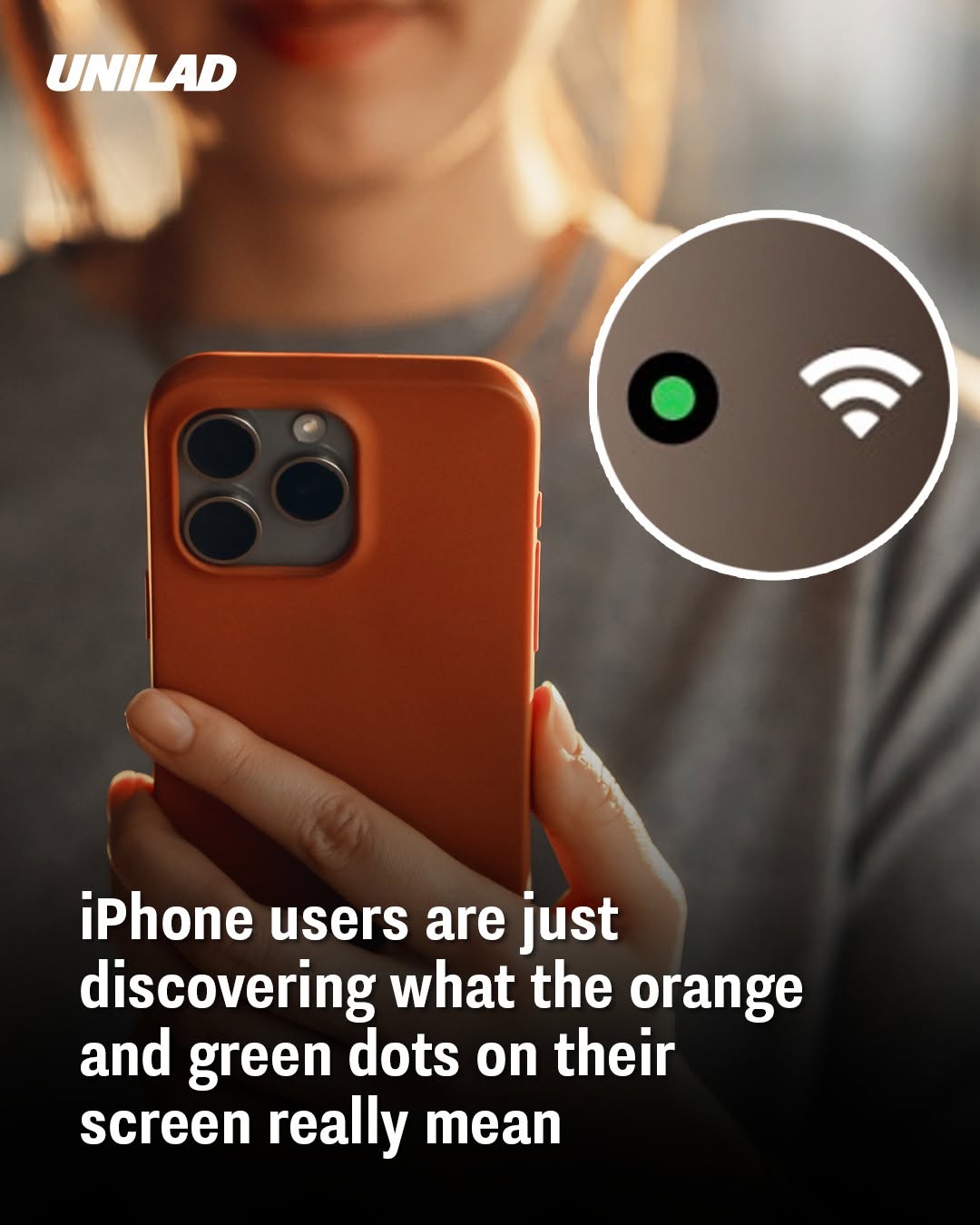
If you’ve ever noticed a small orange or green dot appearing at the top of your iPhone screen, you’re not alone. Many users have wondered whether these mysterious indicators signal a problem with their device. Fortunately, the dots are not warning signs of a malfunction. In fact, they were introduced by Apple as important privacy features designed to let users know when apps are accessing sensitive parts of their phones.
Understanding what these colored dots mean can help you better protect your personal information.
What Does the Orange Dot Mean?
The orange dot appears whenever an app is actively using your iPhone’s microphone. This means that an application is listening through your device’s microphone, either because you granted it permission or because the feature is necessary for the app to function.
Common examples include:
Making or receiving phone calls,
Recording voice notes,
Using voice messaging features,
Talking during video calls,
Activating voice assistants,
Using speech-to-text functions.
If you open an app that requires audio input, seeing the orange dot is completely normal. However, if the orange dot appears unexpectedly while you’re not using any microphone-related features, it may be worth checking which app is responsible.
What Does the Green Dot Mean?
The green dot indicates that an app is using your camera. In some situations, it can also mean that both your camera and microphone are active at the same time.
You may notice the green indicator while:
Taking photos,
Recording videos,
Participating in FaceTime calls,
Scanning QR codes,
Using social media camera features,
Joining video conferences.
The indicator serves as a reminder that visual access to your device is currently in use.
Why Did Apple Introduce These Indicators?
Apple added the feature as part of its ongoing efforts to improve user privacy and transparency. Before these indicators existed, users often had no immediate way of knowing whether an application was accessing their microphone or camera. The colored dots provide instant visual alerts, allowing people to understand when sensitive hardware components are active. This simple addition gives users greater awareness and control over their devices.
How to Check Which App Is Using Them
If you see either dot and want to know which application triggered it, the process is straightforward. Swipe down from the top-right corner of your screen to open the Control Center. At the top of the display, your iPhone will identify the app that most recently used your microphone or camera. This can help you determine whether the activity was expected or if further investigation is needed.
What Should You Do If You Notice Something Unusual?
Most of the time, these indicators appear for perfectly legitimate reasons. However, if you notice the dots appearing when you are not actively using features that require them, consider taking a few precautions:
Close apps running in the background,
Review app permissions in Settings,
Disable microphone or camera access for apps that don’t need it,
Update your device to the latest iOS version,
Delete apps you no longer trust or use.
Unexpected activity does not automatically mean your phone has been hacked, but reviewing your privacy settings is always a sensible step.
How to Manage App Permissions
To check which apps can access your microphone or camera:
Open Settings.
Select Privacy & Security.
Tap Microphone or Camera.
Review the list of apps with permission.
Turn access off for any applications you do not want using those features.
Regularly reviewing these settings can help ensure that only trusted apps have access to your device.
A Small Dot With a Big Purpose
Although the orange and green dots may seem insignificant, they play an important role in protecting user privacy. Rather than indicating that something is wrong with your iPhone, they provide valuable transparency about how apps interact with your device. The next time you notice one of these indicators, you’ll know exactly what it means—and you’ll have the knowledge to decide whether the activity is expected or whether it’s time to take a closer look at your privacy settings.